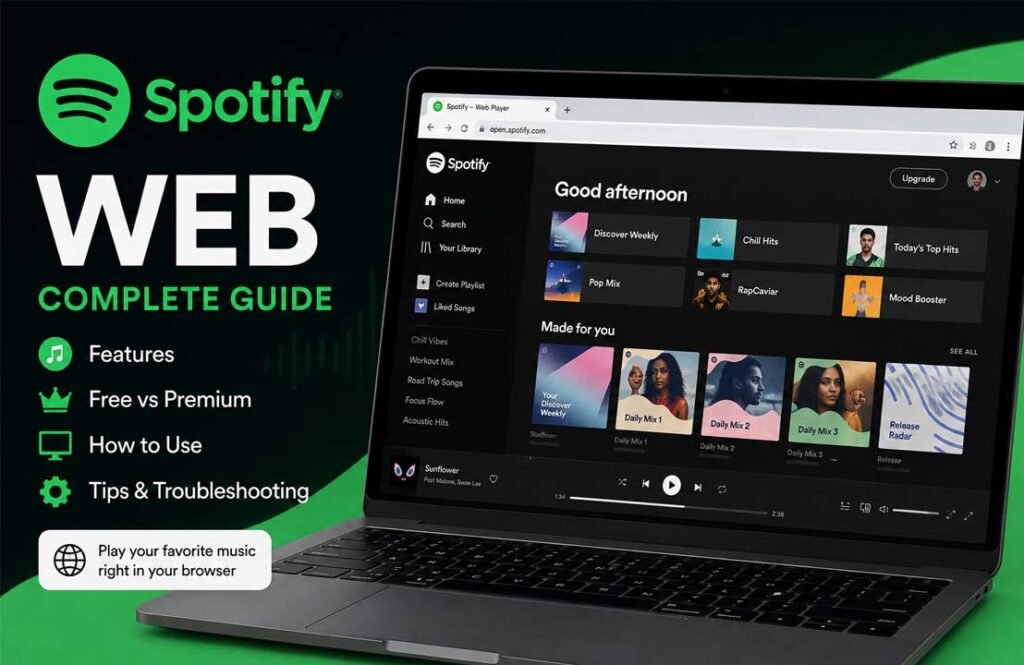
Spotify Web is the browser version of Spotify that lets you listen to music, podcasts, and other audio without installing an app. You simply open a supported web browser, sign in to your account, and start streaming.
Many people search for Spotify Web because they want a quick way to use Spotify on a work computer, a shared device, or a computer where installing software is not possible. Others want to know how it compares with the desktop app or whether they need a Premium subscription.
This guide explains what Spotify Web is, how it works, its main features, the differences between Free and Premium, common problems, and useful tips to help you get the best experience.
What Is Spotify Web?
Spotify Web, also known as the Spotify Web Player, is the web-based version of Spotify. Instead of downloading software, you can access your account directly through a supported web browser.
The web player offers many of the same features found in the desktop and mobile apps. You can search for songs, artists, albums, playlists, and podcasts, manage your library, create playlists, and receive personalized music recommendations.
One of its biggest advantages is convenience. Since it runs entirely in a browser, you can use Spotify on computers where you cannot install applications. This makes it useful for workplaces, schools, libraries, and shared family computers.
Spotify Web also keeps your account synchronized across devices. Your playlists, liked songs, listening history, and recommendations stay connected to your Spotify account, making it easy to switch between your phone, tablet, desktop app, and web browser.
Although the web player includes most everyday listening features, it does not offer every feature available in Spotify’s desktop or mobile applications. Some advanced audio settings and offline playback are available only through the installed apps.
How to Access Spotify Web
Getting started with Spotify Web takes only a few minutes.
Open a supported browser such as Google Chrome, Microsoft Edge, Mozilla Firefox, Safari, or Opera. Then visit the official Spotify Web Player at open.spotify.com.
If you already have a Spotify account, sign in using your email address, username, or another supported login method. New users can create a free account before they begin listening.
After signing in, the home page displays recommended playlists, recently played content, new releases, and personalized suggestions based on your listening history.
Because Spotify Web is cloud-based, your music library is linked to your account rather than your device. Any playlists or saved songs you add through the web player will also appear in the Spotify mobile app and desktop application.
Supported Devices
Spotify Web works on most modern computers with an updated web browser, including:
- Windows PCs
- Mac computers
- Linux computers
- Chromebooks
- Most modern browsers on mobile devices
Although Spotify Web can open in mobile browsers, Spotify generally provides a better experience through its official mobile app, which includes features designed for smartphones and tablets.
How Spotify Web Works
Spotify Web streams music directly from Spotify’s servers through your internet browser. Since everything happens online, there is no need to install software or store music files on your computer.
After signing in, you can search for artists, albums, songs, playlists, podcasts, and other available content. Selecting any item starts streaming almost immediately if you have a stable internet connection.
The interface is designed to be familiar for existing Spotify users. The main navigation usually includes sections such as Home, Search, and Your Library, making it easy to move between recommendations, saved content, and new discoveries.
Your Spotify account automatically keeps your listening activity synchronized. For example, if you start listening on your phone, you can later open Spotify Web on your computer and continue with the same playlists, saved albums, and listening history.
Spotify also uses your listening activity to recommend new artists, playlists, and songs that match your interests. These recommendations become more accurate as you continue using your account.
Main Features of Spotify Web
Spotify Web includes many of the tools people use every day for music streaming.
Stream Music and Podcasts
Spotify Web gives users access to Spotify’s large library of music and podcasts. You can search for individual tracks, albums, artists, and curated playlists directly from the browser.
Content availability may vary depending on your country and Spotify account.
Create and Manage Playlists
You can build playlists for different moods, activities, or music genres. Songs can be added, removed, or rearranged whenever you like.
Because playlists are connected to your Spotify account, any changes automatically appear on your other devices.
Save Your Favorite Music
Spotify Web lets you save songs, albums, and playlists to your library. Liked songs remain available across your account, making it easier to find them later.
Personalized Recommendations
Spotify recommends music based on your listening habits. The Home page often includes suggested albums, playlists, artists, and recently released music that matches your interests.
These recommendations update over time as your listening activity changes.
Recently Played
The Recently Played section helps you quickly return to albums, playlists, podcasts, and artists you listened to earlier without searching again.
Queue Management
You can view and manage your playback queue while listening. This allows you to see which songs will play next and adjust the order if needed.
Cross-Device Sync
One of Spotify Web’s most useful features is synchronization. Your playlists, saved songs, recommendations, and listening history stay connected across supported devices using the same Spotify account.
Social Sharing
Spotify Web allows you to share songs, playlists, albums, and podcasts with others using sharing options provided by the platform.
Keyboard Shortcuts
Spotify Web supports several keyboard shortcuts that make navigation faster. Depending on your browser and operating system, shortcuts can help you play or pause music, change volume, skip tracks, and perform other common actions more quickly.
Spotify Free vs Premium on the Web
Spotify Web is available with both Free and Premium accounts. You can use either option through your browser, but the listening experience is different.
A free account lets you stream music, podcasts, and other available content. You can search for songs, create playlists, save music to your library, and receive recommendations. However, free users will hear advertisements and may have limits on skipping tracks in some situations.
Spotify Premium removes advertisements and offers additional benefits. Premium subscribers can skip songs without limits and enjoy higher audio quality where supported.
Free vs Premium Comparison
| Feature |
Spotify Free |
Spotify Premium |
| Music streaming |
Yes |
Yes |
| Podcasts |
Yes |
Yes |
| Ads |
Yes |
No |
| Unlimited skips |
Limited |
Yes |
| Higher audio quality |
Limited |
Yes |
| Playlist creation |
Yes |
Yes |
You may see some websites claiming that Spotify Web supports offline listening for Premium users. However, Spotify’s web player generally requires an internet connection. Offline downloads are normally available through the desktop and mobile apps rather than the browser version.
Spotify Web vs Desktop App vs Mobile App
Spotify offers three main ways to listen: the web player, the desktop application, and the mobile app. Each option is designed for different situations.
The web player is best when you want quick access without installing software. It works directly in your browser and includes most everyday listening features.
The desktop application includes additional features for users who prefer listening on a computer. Depending on your subscription and operating system, it supports offline downloads for Premium users and includes more audio settings.
The mobile app is designed for smartphones and tablets. It provides touch-friendly controls and works well for listening while traveling.
| Feature |
Spotify Web |
Desktop App |
Mobile App |
| Installation required |
No |
Yes |
Yes |
| Browser access |
Yes |
No |
No |
| Offline listening |
No |
Yes (Premium) |
Yes (Premium) |
| Equalizer |
No |
Available on supported systems |
Available on supported devices |
| Crossfade |
No |
Yes |
Yes |
| Best for |
Quick browser access |
Regular computer use |
Listening on the go |
If you regularly use your own computer, the desktop app may offer a better experience. If you only need temporary access or cannot install software, Spotify Web is usually the better choice.
Common Spotify Web Problems and How to Fix Them
Most Spotify Web problems are easy to solve. The following solutions fix many common issues.
Spotify Web Is Not Loading
If the web player does not open, first check your internet connection. Then refresh the page and make sure you are using a supported browser.
If the problem continues, clear your browser’s cache and cookies before trying again.
If Spotify is experiencing a service outage, you may need to wait until the issue is resolved.
Login Problems
If you cannot sign in, make sure you are using the correct account details.
If you normally sign in with Google, Facebook, or another connected account, use the same login method you used when creating your Spotify account.
Reset your password if necessary.
Music Keeps Buffering or Stopping
Music may pause if your internet connection is unstable.
Try these steps:
- Check your internet speed.
- Close unnecessary browser tabs.
- Restart your browser.
- Try another supported browser if the problem continues.
Browser Compatibility Issues
Spotify Web works best with updated versions of supported browsers.
If your browser is outdated, update it to the latest version.
Some browser extensions may also interfere with playback. Temporarily disabling them can help identify the cause.
Poor Audio Quality
If music does not sound as expected, check your internet connection first.
A slow connection may reduce streaming quality. Using a faster and more stable connection usually improves playback.
DRM or Protected Content Errors
Some browsers require protected content (DRM) support to play licensed music.
If you receive DRM-related errors, check your browser settings and make sure protected content is enabled.
Tips to Get the Best Spotify Web Experience
A few simple habits can make Spotify Web easier to use.
- Keep your browser updated.
- Use a reliable internet connection.
- Organize your playlists for quicker access.
- Save your favorite songs to Your Library.
- Explore personalized recommendations to discover new artists.
- Learn keyboard shortcuts if you use Spotify Web regularly.
- Disable browser extensions that interfere with playback.
- Sign in with the same Spotify account on all your devices to keep your playlists synchronized.
Benefits and Limitations of Spotify Web
Spotify Web offers many advantages, but it also has some limitations compared with the installed apps.
Benefits
- No software installation required.
- Works in most modern browsers.
- Easy access from shared or public computers.
- Syncs playlists and listening history across devices.
- Supports music, podcasts, and other available content.
- Available with both Free and Premium accounts.
Limitations
- Requires an internet connection.
- Does not generally support offline listening.
- Fewer advanced audio settings than the desktop app.
- Some browser extensions can affect playback.
- Performance depends on your browser and internet connection.
For many people, these limitations are minor. If you mainly stream music online, the web player provides most of the features needed for everyday listening.
Spotify Web Alternatives
If Spotify Web does not meet your needs, several other browser-based music services are available.
YouTube Music Web
YouTube Music Web lets users stream official songs, albums, music videos, and live performances directly from a browser.
Many people choose it because it combines music with YouTube’s large video library. It also provides personalized recommendations and playlists based on listening habits.
It is a good choice for people who enjoy both audio and music videos.
Apple Music Web
Apple Music Web provides browser access to Apple’s music streaming service.
Subscribers can stream millions of songs, browse curated playlists, and access their music library without installing software.
It is best suited for people who already use Apple devices or have an Apple Music subscription.
Amazon Music Web
Amazon Music Web allows Amazon Music subscribers to stream music through a browser.
Users can access playlists, albums, podcasts, and personalized recommendations from their account.
It works especially well for people already using Amazon’s services.
Deezer Web Player
Deezer offers a web player that includes music streaming, playlists, podcasts, and personalized recommendations.
Many users choose Deezer because of its simple interface and music discovery features.
It is a suitable alternative for people who want another browser-based streaming platform.
Bottom Line
Spotify Web makes it easy to enjoy music and podcasts without installing software. You only need a supported browser, a Spotify account, and an internet connection to start listening.
For most users, the web player includes the features needed for everyday streaming, including playlist management, music discovery, and synchronized libraries across devices.
If you need offline listening or additional audio controls, the desktop or mobile app may be a better option. Otherwise, Spotify Web is a convenient way to access your music from almost any computer.
Frequently Asked Questions
Can I use Spotify Web for free?
Yes. Spotify Web works with both Free and Premium accounts. Free users can stream music with advertisements, while Premium users receive additional features such as ad-free listening.
Do I need to install Spotify to use Spotify Web?
No. Spotify Web runs entirely in a supported web browser, so no installation is required.
Which browsers support Spotify Web?
Spotify Web supports most modern browsers, including Google Chrome, Microsoft Edge, Mozilla Firefox, Safari, and Opera.
Can I use Spotify Web on my phone?
Yes. Spotify Web can open in mobile browsers, but Spotify’s mobile app usually provides a better experience on smartphones and tablets.
Can I download songs using Spotify Web?
Spotify Web generally does not support offline downloads. Premium users can download music through the desktop and mobile apps instead.
Why is Spotify Web not working?
Common causes include internet connection problems, outdated browsers, browser cache issues, incompatible extensions, or temporary Spotify service outages.
Is Spotify Web safe to use?
Yes. Spotify Web is safe when you use the official Spotify website and sign in with your own account. Avoid unofficial websites that claim to offer Spotify services.
What is the difference between Spotify Web and the desktop app?
The biggest difference is that Spotify Web runs in a browser and does not require installation. The desktop app includes additional features such as offline listening for Premium users and more advanced audio controls.
Read Next: MollyGram: How to Watch and Download Public Instagram Content