


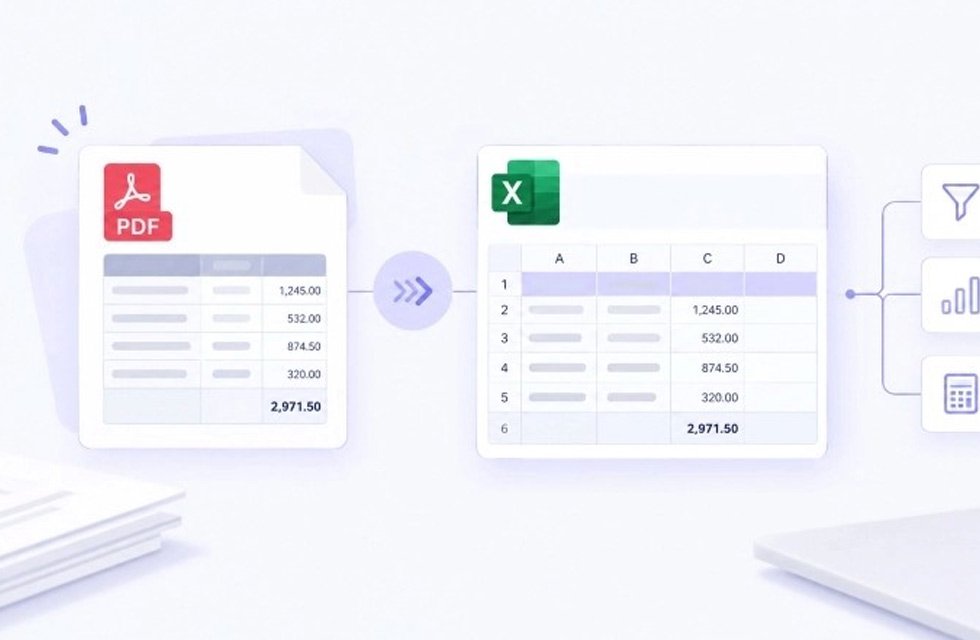
You should first examine the text to see if it contains tables that you need to extract.It’s not easy to copy a table from a PDF. The rows move, the columns combine, and the numbers become regular numbers. Many then end up spending an hour patching a table that should take 5 minutes. I checked out iBoomto, and saw how it’s solving this issue. The website provides free PDF related utilities over the internet and a PDF editor application for windows operating system. This review provides a description of the free table tool and some things to be aware of before analyzing the data.
What the Tool Does
PDF table extractor detects tables in a PDF file and converts them to editable data. It does not take into account the text surrounding the tables and only considers rows and columns. No account or sign up required. The page is accessible by anyone and can be opened and started by anyone.
This focus matters. The general PDF to excel converter attempts to recreate the entire page. That seems to result in broken tables and extra text. A table extractor eliminates paragraphs and brings you back to the numbers.
Open the public pdf file
The first test is easy if it is a public document. A government report or an open research paper is good. You can easily compare it to the original and you’re never at risk of private data.
Click your PDF in the tool page and drag it to the upload section. The page specifies 50MB as the maximum size of each file. The tool then “automatically” identifies all the tables on each page. If the file is protected by a password, it will first ask you for the password. Also, it is possible to upload only one file at a time, so, please plan your tests one by one.
Make sure you review your work prior to exporting it
iBoomto displays a preview of each of the tables it locates. This is something that a lot of people don’t do, but it will save them a ton of time in the long run. Consider four questions:
- Count the number of tables in the PDF and make sure to have that many in the document.
- The structure of merged/multi level headers should be retained.
- If you have a table that spans multiple pages, then it should be one table.
- Numbers and dates should be delivered in the form of actual numbers which can be sorted and added together.
Next, open the original pdf document next to the preview and compare a couple of rows by sight. Examine the first row, last row and one row in the middle. Be extra careful with totals, as any mistake in this expands to all the charts you create in the future.
Occasionally, Excel will keep reading numbers as text. The website directs you to click on the green warning triangle and enter the numbers.
Select an “Export Format”
This tool will export your tables into 3 formats. Formulas and pivot tables work best in Excel (.xlsx). CSV is a suitable format for databases and scripts. The JSON is suitable for use in apps and custom workflows.
Choose the appropriate format for your subsequent move. An analyst who wants to sort and filter will select Excel. A developer will select CSV or JSON if he feeds a script. This tool will only retrieve tables. It doesn’t translate the entire page, so please read the notes by each table and ensure that nothing is missing important. A footnote can change the meaning of a number.
Know the Free Limits
The easy access is appreciated by anyone who wishes to extract tables from PDF free . There is no cost or sign up. According to iBoomto, there isn’t a limit in terms of pages or tables within a single text based PDF.
Scanned files require more attention. Built in can be used to read them as well but the free allowance only lasts up to 100,000 tokens and scanned pages consume more of that. A large scan could take more than one free run to complete. Try some pages and then determine if it fits the bill for a free tool.
In addition, iBoomto says that it never stores your file or your tables. The tool deletes the data when you close the page. Despite this, only upload what you’re comfortable with sharing online.
When the Windows App Makes Sense
Occasional work is filled by the online tool. You may find that you need to upload numerous supporting documents, scanned files or sensitive data like bank statements. If so, then the Windows app, iBoomto AI 1.0 or higher is preferable.
The company claims the app works on your own computer, ensuring that the files remain on your computer. The app also abstracts and summarizes content and provides answers to questions in multiple tables. It’s helpful when you need a quick answer, and you don’t want to go scrolling through all the pages.
Who Can Use It
Students will be able to extract information from research papers. Invoices and Statements tables can be exported into a spreadsheet by office workers. The figures can be gathered from a report that is public. If the tool is only used occasionally by the end-user, they may continue using the free edition. For the folks that use private files weekly, check out the Windows application.
Final Thoughts
The free tool enables you to import PDF tables into a spreadsheet without retyping them. Its export functionality and open access allows easy testing. Be sure to read the preview before downloading and keep in mind the free size limit for scanned files. The Windows app will fit better for larger or private projects.
