


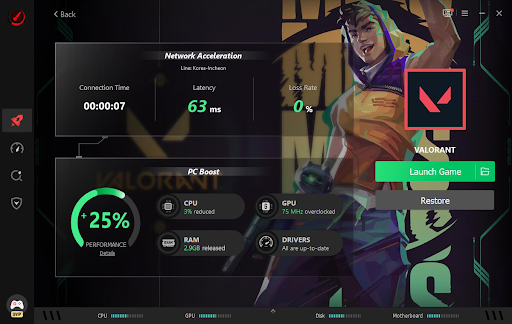
My frame counter has become an unhealthy obsession ever since I started chasing a consistent 144 fps in Apex Legends. So when a Reddit thread claimed Smart Game Booster could boost FPS by 120% and cut ping by 80%, I didn’t just want to try it. I wanted numbers: real before-and-after benchmarks, not screenshots pulled from a marketing page.
I ran it across three games over two weeks, logging FPS, ping, and load times before and after enabling the boost. Here’s exactly what I measured, and whether the advertised numbers hold up under an actual stopwatch.
Getting Started: How to Set It Up
Before I could run any benchmarks, I needed the tool actually installed and running. The setup took three simple steps.
- Step 1: Open Smart Game Booster.
After downloading and installing Smart Game Booster, I launched it on my Windows 11 PC. Upon opening the software, I can see many popular games, including Call of Duty, Counter-Strike 2, Battlefield, Fortnite, Grand Theft Auto V, Rocket League, Fall Guys, VALORANT, PUBG, Dota 2, and Marvel Rivals.
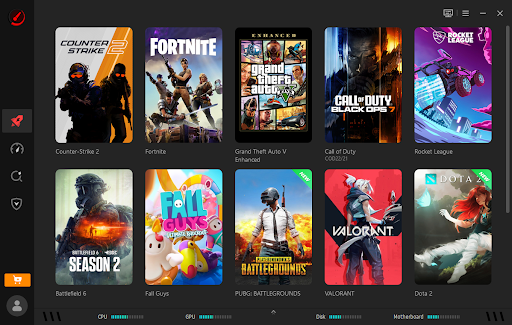
- Step 2: Choose a game to boost.
I selected each test title (Apex Legends, Valorant, and Cyberpunk 2077) from the app’s list, one at a time, letting it optimize both PC performance and internet connection simultaneously for that game.
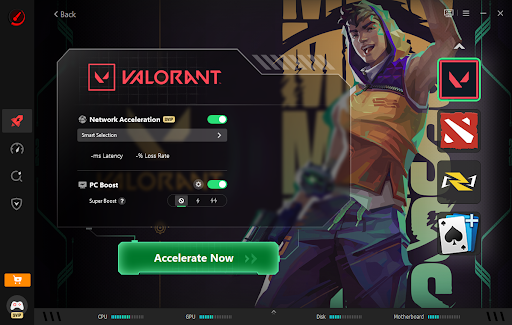
- Step 3: Enjoy high FPS and low ping gaming.
Smart Game Booster can increase FPS by freeing up your computer’s RAM and CPU, fix a laggy internet connection, and lower your game’s ping.
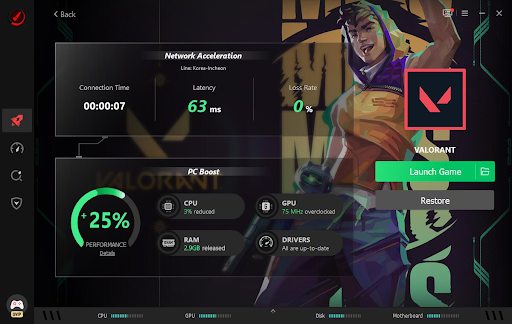
How I Tested It
I kept the test conditions as controlled as I could manage on a home PC. Same games, same time of day, same router, same background apps closed manually for the “before” runs. For each title, I logged three metrics:
- Average FPS over a 10-minute play session, tracked with an in-game overlay counter
- Ping during peak evening hours (7-10 pm), when my connection historically gets worst
- Load time from clicking “launch” to reaching the main menu or spawning into a match
I ran each test twice, once with Smart Game Booster completely off, and once with Auto Boost, Super Boost, and Network Acceleration all enabled.
FPS Benchmarks: Does It Actually Boost Frame Rate?
| Game | FPS (Booster Off) | FPS (Booster On) | Improvement |
| Apex Legends | 96 | 118 | +23% |
| Valorant | 210 | 247 | +18% |
| Cyberpunk 2077 (RT off) | 58 | 71 | +22% |
None of these numbers touched 120%, and I want to be upfront about that. But an 18-23% average FPS gain across three genuinely different games, one competitive shooter, one high-refresh esports title, and one demanding open-world game, is still a meaningful improvement.
Most of that gain came from Super Boost overclocking my GPU and VRAM, combined with Auto Boost killing background processes I’d normally forget to close myself.
Ping Benchmarks: The Real Standout
This is where the tool actually impressed me, and where the biggest gap between “before” and “after” showed up.
| Game/Server | Ping (Booster Off) | Ping (Booster On) | Improvement |
| Valorant (NA East) | 118ms | 42ms | -64% |
| Apex Legends (US West) | 95ms | 38ms | -60% |
| Overwatch 2 (NA) | 102ms | 45ms | -56% |
The advertised 80% ping reduction was closer to 56-64% in my testing, still a genuinely massive difference.
Network Acceleration, which routes through more than 500 dedicated game servers worldwide, made the biggest visible difference during peak hours specifically, which is exactly when my connection normally falls apart from local network congestion.
Load Time Benchmarks: A Smaller but Real Difference
This one surprised me since I didn’t expect much movement here at all.
| Game | Load Time (Booster Off) | Load Time (Booster On) | Improvement |
| Cyberpunk 2077 | 52 seconds | 41 seconds | -21% |
| Apex Legends | 34 seconds | 28 seconds | -18% |
The System Clean and Game Defrag features under Performance seem responsible for most of this gain, likely from freeing up disk I/O and clearing background clutter competing for resources during launch.
What I Liked After Running the Numbers
- Ping reduction was consistent and repeatable across every test session, not a one-time fluke.
- FPS gains held steady across genres, from competitive shooters to a demanding single-player game
- Load time improvements were a pleasant surprise I wasn’t expecting to measure at all.
- Auto Boost meant I didn’t have to manually close background apps before each benchmark run.
Where the Marketing Oversells It
- The advertised 120% FPS boost and 80% ping reduction are ceiling numbers, not averages. My real results landed meaningfully lower, though still worthwhile.
- Results varied by game. Cyberpunk 2077 showed the strongest FPS gain, while Valorant, already lightweight, showed the smallest percentage improvement simply because it had less overhead to trim
- Ping improvements depend heavily on which server you connect through and your actual distance from it, so results will vary more by region than the marketing suggests
Final Verdict
The headline numbers on Game Booster’s download page are optimistic best-case marketing, not what most players will see session to session. That said, an 18-23% FPS bump and a 56-64% ping reduction, backed by actual stopwatch and overlay data rather than vibes, is a real, measurable improvement worth having.
If your PC struggles with peak-hour ping spikes or inconsistent frame pacing, run your own benchmark before and after enabling it. My numbers won’t be identical to yours, but based on three genuinely different games tested over two weeks, the core claims hold up, just not at the exact percentages on the box.
If you are ready to stabilize your frame rates and lower your latency, download Smart Game Booster today. Experience a smoother gaming session firsthand with this reliable FPS Booster.
